
Installation
This page is for Polarion and IT administrators. It covers the components, the Polarion configuration they need, and the order of the setup steps. Plan for one Polarion server, one Docker host for the runner (usually the Polarion host itself), and access to your model provider or company LLM gateway.
The Polarion side of the setup is a built-in feature, Agentic setup: it compares a project with the configuration that ships with the release and applies what is missing, as you, from the browser. No scripts and no manual edits of the project configuration are needed, with one exception explained in step 7.
Overview
Section titled “Overview”flowchart LR I["<b>Install</b><br/><small>Agent Runner (Docker) · app ZIP</small>"]:::ext --> P["<b>Empty project</b><br/><small>for the Agent Pool</small>"]:::pol P --> N["<b>One navigation line</b><br/><small>Agency, administrator hat</small>"]:::you N --> B["<b>Agency banner</b><br/><small>Add Administration to the navigation</small>"]:::you B --> S["<b>Administration → Setup</b><br/><small>plan · Apply · verified</small>"]:::you S --> E["<b>Enable projects</b><br/><small>adds the Agentic types and pages</small>"]:::pol E --> C["<b>Administration → Credentials</b><br/><small>model key · agent tokens</small>"]:::you C --> H["<b>Hire</b><br/><small>Agent Team page</small>"]:::ok classDef pol fill:#dcecec,stroke:#0d6e6e,stroke-width:1.2px,color:#12302f classDef run fill:#ece5fb,stroke:#7c3aed,stroke-width:1.2px,color:#2b1d4f classDef ext fill:#e3ebfb,stroke:#2563eb,stroke-width:1.2px,color:#16264a classDef you fill:#fdf0d8,stroke:#b7791f,stroke-width:1.2px,color:#4a3210 classDef ok fill:#e3f2e7,stroke:#1f7a3d,stroke-width:1.2px,color:#143d22 classDef bad fill:#fbe4e2,stroke:#b3261e,stroke-width:1.2px,color:#4d1612 classDef mute fill:#f1f4f6,stroke:#8a96a3,stroke-width:1.2px,color:#2a3440
Components
Section titled “Components”| Component | What it does | Where it runs |
|---|---|---|
Polarion app agentic |
The views: Agent Team, AI Reports, Agency, Administration (with Agentic setup), the AI Agent task panel, Provenance, MCP server panel, Agent brain, Agent chat sidebar. Server scripts for hiring and letting go. | Inside Polarion |
| Agent Runner | Watches Polarion for work, runs the agents, hosts the MCP gateway, holds the encrypted secret store (model key, agent tokens, connection credentials). | Docker |
| PocketBase | Operational state: live events, held approvals, standing rules, encrypted credentials, chats, watcher state. | Docker, next to the runner |
| OpenSandbox | Optional. One sandbox per task for Claude Code and Codex agents. | Docker host of the runner |
Polarion stays the system of record: agents, skills, connections, engagements, tasks, runs and everything agents create live there. See Architecture.
1. Prepare Polarion
Section titled “1. Prepare Polarion”- REST API: enable it in
polarion.properties(com.siemens.polarion.rest.enabled=true) together with REST API tokens, as described in Polarion’s REST API documentation. The runner uses personal access tokens. - Polarion apps: set the configuration property
polarionapp.enabled=true. - REST permissions: the views call REST as the signed-in user, and bots use REST too. Grant the REST
permissions (
com.polarion.rest.get,…patch,…post,…delete) to the global role your users and bot users have, for exampleuser.
2. Create users and tokens
Section titled “2. Create users and tokens”- Runner admin: a Polarion user for the runner itself, with administrator rights, and a personal access
token for it. The runner validates callers, reads the pool and writes run records with it. The token becomes
the bootstrap secret file
admin_tokenin step 4. - Bot users: one Polarion user per agent, id
bot-<name>, with a licence and the global roleuser. Each needs a personal access token, which you paste into Administration → Credentials in step 11 (you can create the tokens now or from the links on that page). Don’t add bot users to projects; hiring does that. See Agent Pool.
3. Install the app
Section titled “3. Install the app”Every release on GitHub carries the app package agentic-app-<version>.zip, the documentation site, the
configuration manifest and the compose files; the container images are published to the GitHub Container
Registry (ghcr.io/pupca/polarion-agentic-platform/{runner,pocketbase,workspace,egress}:<version>).
Upload the app package in Global Administration → Applications. That installs the views and the server scripts. The Agentic pages appear in a project only once the project is set up (steps 7 and 9); nothing changes in your other projects.
4. Run the Agent Runner and PocketBase
Section titled “4. Run the Agent Runner and PocketBase”The runner takes its configuration from agentic.env and its bootstrap secrets from files; it reads no secret
from environment variables. See Credentials for the two classes of secrets.
-
Copy
agentic.env.exampletoagentic.envand fill in the values (table below). -
Create the four secret files under
secrets/, each holding one value and nothing else, mode0600:File Content secrets/secret_keyA new Fernet key: python -c "from cryptography.fernet import Fernet; print(Fernet.generate_key().decode())". It encrypts the runner’s secret store; keep a copy in your secret management.secrets/admin_tokenThe runner admin’s personal access token from step 2. secrets/pocketbase_admin_passwordThe PocketBase superuser password you choose. secrets/opensandbox_api_keyThe OpenSandbox API key, or an empty file if you don’t use sandboxes. -
Start both services and create the PocketBase superuser with the same email and password. With the released images (
docker login ghcr.iofirst while the repository is private):
AGENTIC_VERSION=0.4.0 docker compose -f docker-compose.yml -f docker-compose.release.yml up -dOr build the images from the sources:
docker compose -f docker-compose.yml -f docker-compose.server.yml up -d --builddocker compose -f docker-compose.yml -f docker-compose.server.yml exec pocketbase \ /pb/pocketbase superuser upsert EMAIL PASSWORD --dir=/pb/pb_dataThe shipped docker-compose.yml declares the four files as secrets: entries, so the runner finds them at
/run/secrets/<name>. On Kubernetes, mount a Secret volume (or a CSI secrets-store driver or External Secrets) at
/run/secrets with the same file names; nothing else changes. The server override file runs both services on
the host network with PocketBase bound to localhost; set HOST to 127.0.0.1 so the runner’s API is bound to
localhost too. The plain docker-compose.yml publishes ports 8080 and 8090 and is meant for development.
Database migrations are applied when PocketBase starts.
Setting in agentic.env |
Meaning |
|---|---|
POLARION_URL |
Polarion base URL, ending in /polarion. |
POLARION_VERIFY_TLS |
false only if Polarion uses a certificate the runner can’t verify. |
LLM_GATEWAY_URL |
Base URL of your model provider or company LLM gateway. Anthropic, OpenAI and Google models are supported. The key is set later in Administration → Credentials. |
MODEL_OVERRIDE |
Testing only: run every agent on this model instead of its own. Leave empty in production. |
POCKETBASE_URL |
PocketBase URL as the runner reaches it. |
POCKETBASE_ADMIN_EMAIL |
PocketBase superuser email; the password is the secret file. Without the superuser there is no live feed, approvals or watcher state. |
CORS_ORIGINS |
JSON list of browser origins allowed to call the runner. |
GATEWAY_URL |
MCP gateway URL for the built-in agent loop. Default: the runner itself. |
HOST |
Address the runner’s API binds to. |
MAX_STEPS_PER_RUN |
Model steps per run. Default 40. |
WATCH_ENABLED, WATCH_INTERVAL_SECONDS |
Polling Polarion for work, and how often. Defaults: on, 5 s. |
OPENSANDBOX_URL, SANDBOX_* |
Sandboxes, see Sandboxes. The API key is the secret file. |
The runner does not need to be told which project is the Agent Pool: it looks for the project whose Agentic settings item has the role pool (step 8 creates it). There is one pool per server.
The model is set per agent as <provider>:<model>. Your gateway must serve the Anthropic Messages API, the OpenAI
Responses API and the Google Gemini API under LLM_GATEWAY_URL, for the providers your agents use.
5. Put the runner behind the same origin
Section titled “5. Put the runner behind the same origin”The views call the runner at /agentic-runner/ on the Polarion host by default, and the runner checks the
user’s session token together with the session cookie, so it must be served from the same origin as Polarion.
With Apache:
ProxyPass /agentic-runner/ http://127.0.0.1:8080/ flushpackets=on timeout=600ProxyPassReverse /agentic-runner/ http://127.0.0.1:8080/flushpackets=on keeps the live event streams flowing. Keep the runner’s port bound to localhost. If you choose
another path, enter it as the Agent Runner address in step 8.
6. Create the Agent Pool project
Section titled “6. Create the Agent Pool project”Create a new, empty Polarion project for the Agent Pool. Any id and name will do; no template is needed, and a plain empty project is best. The pool is owned entirely by the platform: Agentic setup gives it exactly the configuration it needs and removes what it does not use, including work items of other types. Never turn a project that holds your own work into the pool.
7. Add the Agency page to the pool’s navigation
Section titled “7. Add the Agency page to the pool’s navigation”This is the one manual step. In the pool project open Administration → Portal → Topics and add the Agency view to the navigation:
<applicationView id="agentic.agency"/>Reload the page. Agency appears in the project’s navigation. Because the Administration page is not in the navigation yet, Agency opens with the banner The Administration page is not in this pool’s navigation yet. Click Add Administration to the navigation: the entry is added as you, in one navigation change. Reload once more and Administration appears next to Agency. Everything else is done from there.
8. Run Agentic setup
Section titled “8. Run Agentic setup”Open Administration → Setup. The page compares the project with the release’s configuration manifest and shows a plan, grouped by what it touches:
| Group | What it creates |
|---|---|
| Data model | Work item types, enumerations, fields, link roles and type icons |
| Lifecycles | Status lists and workflows (agent, skill and connection in the pool) |
| Forms | Form layouts with the Agentic panels |
| Navigation | The Agency and Administration entries, for the default and the administrator hat, and both pages in the pool’s default favourites |
| Home page | A getting-started home page for the pool |
| Settings | The Agentic settings item: configuration version and Agent Runner address |
Steps shown in red delete things. They appear only in the pool, where setup removes work items and work item types the pool does not use, and they need a confirmation checkbox before you can apply.
Enter the Agent Runner address (default /agentic-runner, the path from step 5) and click Apply. Every
change is made as the person who clicks: the data model over Polarion’s REST API with your token, and forms,
workflows, navigation and the home page as commits in the project’s repository, so they appear in its history
under your name. Afterwards the page scans again and shows Up to date — applied and verified.
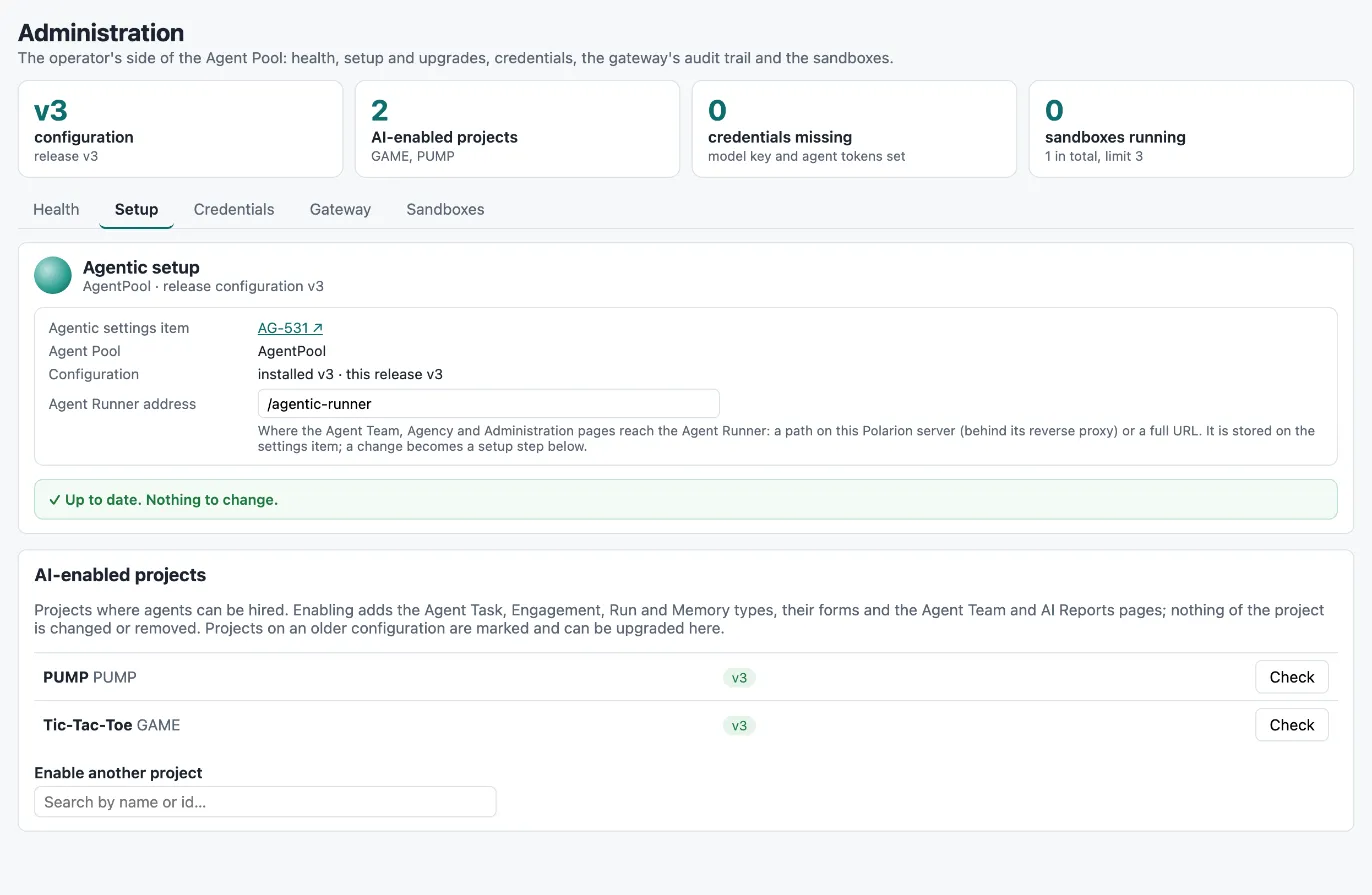
The runner address is stored on the Agentic settings item, and every view reads it from there; nothing is hard-coded. Change it on the Setup tab whenever the runner moves.
9. Enable your work projects
Section titled “9. Enable your work projects”Still on Administration → Setup, search for a project under Enable another project and enable it. That adds the Agentic types, forms and the Agent Team and AI Reports pages to the project without changing anything the project already has. See Enable a project.
10. Fill the pool
Section titled “10. Fill the pool”- Open Agency → Bullpen and hire the skills, agents and connections you need from the catalog that ships with the release; they arrive as drafts, and Approve and publish walks skills and agents through their reviews. For each agent the page checks that its Polarion user from step 2 exists and offers to create it. See Agent Bullpen.
- Or create agents and skills in the pool by hand. Agents must be published and skills approved before they get work. See Agent Pool.
- Connections hired from the catalog (GitHub, GitLab.com) need a credential (step 11) and Check server now before they can be reviewed; other MCP servers you register in Agency → MCP servers. See Connections.
11. Set the credentials
Section titled “11. Set the credentials”Open Administration → Credentials in the pool. The page lists what the runner needs and marks what is missing in red:
- Model key: paste the key for your LLM gateway and Test it (one tiny model request).
- Connected systems: the credential of every connection from step 10, under the name the connection names.
- Agent tokens: one Polarion personal access token per agent in the pool. For each agent, create its Polarion user (step 2) if you haven’t yet, follow the row’s link to create the token in Polarion, paste it and Test (the runner signs in as the agent).
Values are stored encrypted and never shown again; agents use a new value on their next run. See Credentials.
12. Optional: sandboxes
Section titled “12. Optional: sandboxes”Set up OpenSandbox and the two images as described in Sandboxes. Put the API key into the
secret file secrets/opensandbox_api_key and restart the runner.
13. Check
Section titled “13. Check”Run the preflight check (see Operations); it reports missing credentials the same way Administration → Credentials does. Then hire a first agent on a work project’s Agent Team page and assign it a small task.
Upgrading later
Section titled “Upgrading later”Every release ships a versioned configuration. After you upload a new app package, open Administration → Setup: the pool and every enabled project that is on an older version are marked, and one click upgrades them. The same page repairs a project whose configuration was changed by hand. See Enable a project.
A pool that was set up before configuration version 3 has only the Agency entry in its navigation; Setup, Credentials, Gateway and Sandboxes used to be tabs of it. After the upload, open Agency: it shows the banner The Administration page is not in this pool’s navigation yet. Click Add Administration to the navigation, then open Administration → Setup and upgrade the pool; the upgrade also puts both pages into the pool’s default favourites.